Set up BlueAI
Install BlueAI on your computer and start your worker. It takes about 5 minutes.
BlueAI runs on Windows and Mac. Open this page on your computer to download it.
-
Install BlueAI
Open BlueAI.pkg from your Downloads and follow the installer: Continue, then Install. Your Mac asks for your password to install it.
-
Open the installer
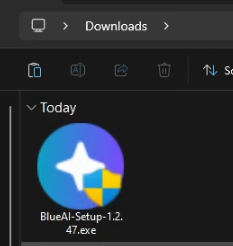
Open BlueAI-Setup.exe from your Downloads. If Windows asks whether to let this app make changes to your device, click Yes.
-
Install BlueAI
The installer runs by itself. When it's done, leave Run BlueAI ticked and click Finish.
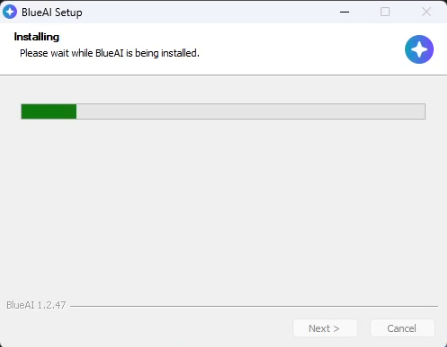
Installing, takes about a minute 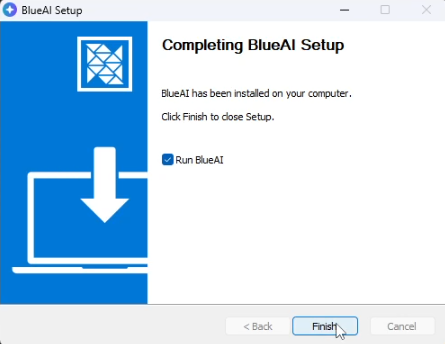
Keep Run BlueAI ticked, click Finish -
Open BlueAI and sign in
BlueAI takes a few seconds to start. Then click Sign in to get started. Your browser opens: sign in with the same email you applied with, then come back to BlueAI.
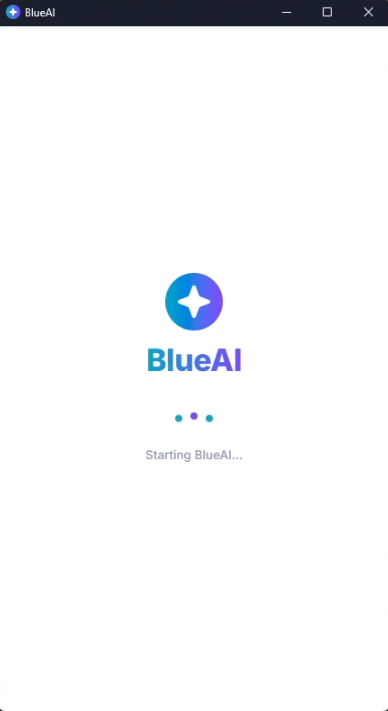
Starting BlueAI 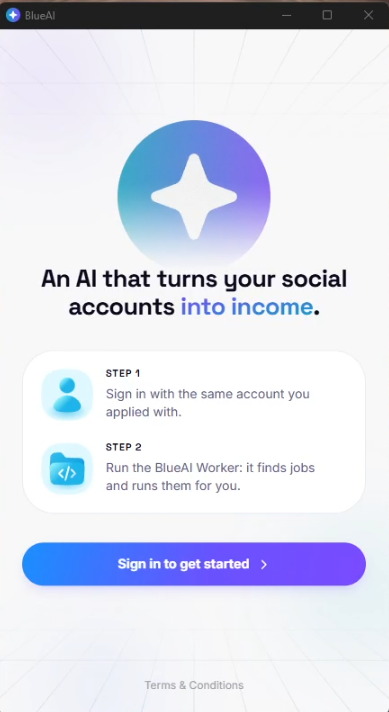
Click Sign in to get started -
Run the BlueAI Worker
You land on the home screen. Click Run on the BlueAI Worker card. It finds jobs that fit you and runs them on your account.
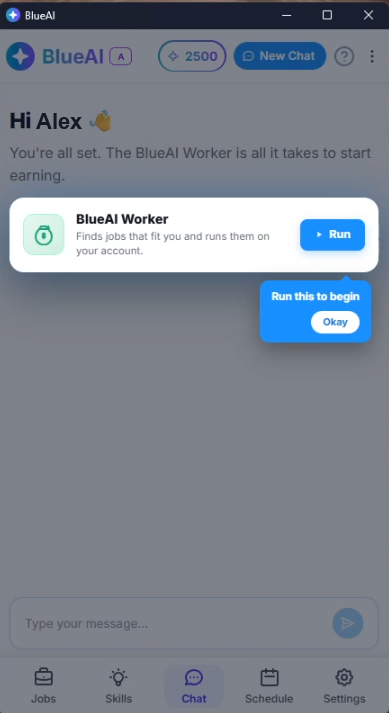
Click Run on the BlueAI Worker card -
Allow BlueAI to install BlueStacks Mac
BlueAI works inside BlueStacks, an app that runs Android apps on your Mac. The first time you click Run, BlueAI installs it for you, and your Mac shows this box:
osascript wants to make changes.Enter your password to allow this.User NamePasswordCancelOKThis is BlueAI installing BlueStacks. "osascript" is the Mac tool BlueAI uses to run the installer. Enter the password you use to unlock your Mac and click OK. You'll see the same box when BlueAI updates itself. -
Let BlueAI install BlueStacks
BlueAI works inside BlueStacks, an app that runs Android apps on your computer. The first time you click Run, BlueAI installs it for you. If Windows asks for permission, click Yes.
-
Connect your YouTube account
The worker opens YouTube and asks you to sign in. Sign in yourself (BlueAI never sees your password), then type done in the BlueAI chat.
Recommended: create a new channel in YouTube for your worker to use, so its videos stay separate from your personal channel.
Stuck on a step? Write to us at support@bluestacks.ai.